
In today’s digital age, the use of 2D Animation Videos is growing rapidly. There’s already significant demand for animated videos on YouTube, Instagram, educational platforms and marketing content.
Earlier creating animation videos required professional animators, expensive software and a lot of time. But now thanks to Artificial Intelligence (AI) creating animation has become quite easy. Now with the help of AI tools you can create cartoon characters, generate animation scenes, add automatic voiceover and create professional 2D Animation Videos. The best part is that even beginners can create animation videos without any animation skills.
In this article, we will explain in detail the best AI tools for 2D animation videos how to make animation videos with AI, how to generate characters and backgrounds, how to write prompts, and how to grow an animation channel.
What are AI Animation Videos

AI animation videos are videos that use cartoon characters, animated scenes and motion graphics. These videos are often created on topics like tech explainers, educational content, kids stories, marketing videos and YouTube automation channels. AI tools create these videos using automatic animation templates.
Example:
When you enter a script into an AI animation tool, the tool automatically:
- Creates scenes
- Adds characters
- Generates voiceover
This greatly speeds up the process of animation video creation.
Best AI Tools for 2D Animation Videos
If you want to create 2D animation videos, these tools are best for beginners. They can help you create videos easily.
1. Animaker
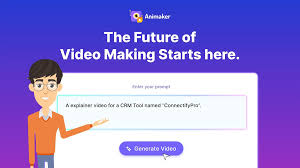
Animaker is an AI powered animation video maker tools. This tool is made for beginners, marketers, teachers and YouTubers, which can generate animated videos from just text or templates.
Animator is free or paid
Animaker is a freemium AI animation tool with both free and paid plans available. The free version allows you to create animated videos, but the videos are watermarked and have limited features. If you need HD quality export, more templates, and watermark-free videos you’ll need to upgrade to Animaker paid plan.
Features:
Animaker is an AI animation tool that features AI text-to-video, a character builder and an AI voice generator. With its ready-made templates and drag-and-drop editor, even beginners can easily create professional 2D animation videos.
Best For:
YouTubers, Teachers, Digital marketers and Beginners
How to Use Animaker (Step-by-Step)
To use Animaker first sign up/login to the website and start a new project by clicking Create a Video. Then choose a template according to your topic, then add characters, text and elements with the drag-and-drop editor. You can also add AI voiceover, music and animations to the video. After all the editing is done, you can download the video by clicking Export.
Animaker Prompt Example:
“Create a friendly 2D cartoon teacher explaining AI tools in a colorful animation style”
2. Steve AI
Steve AI is a powered video creation tool that automatically converts text to video. You just write the script or text and the tool automatically creates scenes, adds characters, generates voiceover and adds music and transitions and finally you get a ready to publish video.
Features:
Steve AI is an AI video generator tool that automatically converts text to video. It offers features like text-to-video, a 2D animation creator, AI voiceover, and a stock media library. You can create animated or explainer videos in minutes by simply pasting a script, making it a very useful tool for beginners and content creators.
Is Steve AI free or paid?
Steve AI offers both free and paid plans. The free plan allows you to create limited videos but it has a watermark and some feature limitations. If you need HD export, premium assets and more video minutes, you’ll need a paid plan. Paid plans start at approximately $10–$40 per month.
How to Use Steve AI (Step by Step)
Step 1: Create an Account
First, go to Steve AI’s website, sign up, create your account, and then log in.
Step 2: Select a Video Type
After logging in, select the Text-to-Video or Animation Video option in the dashboard.
Step 3: Add a Script
Now paste your script or text. AI will automatically generate scenes and visuals based on it.
Step 4: Customize the Video
After this, you can edit the video by adding a voiceover, images, characters, and music.
Step 5: Download the Video
Once everything is ready, check the preview and export or download the video.
Steve AI Example Prompt
“Create a simple 2D animated explainer video about AI tools for beginners with colorful cartoon characters”
3. Vyond AI
Vyond AI is an AI-powered 2D animation videos maker that lets you create animated videos, explainer videos, training videos and YouTube videos without any animation skills. This cloud-based software allows you to create cartoon-style animations with drag-and-drop.
Features:
Vyond AI is an AI animation tool that lets you create animated videos without any animation skills. It offers text-to-video, AI voiceover, 1000+ characters, ready-made templates and a drag-and-drop editor. With this tool, you can quickly create explainer marketing and educational videos.
Vyond AI price (2026 approx)

Starter: $58/month
Professional: $100/month
Enterprise: $137/month (annual billing)
Agency: $167/month
Free trial is also available.
How to use Vyond AI from the basics (step by step)
1: Open the Website
First search for Vyond AI on Google and open its official website.
2: Create an Account
Click on Free Trial / Sign Up on the website.
Create an account with your email and password.
3: Login
After creating your account login and you’ll see the dashboard.
4: Click on Create Video
There’s a Create Video button in the dashboard. Click on it.
5: Choose a Template
You’ll now find plenty of ready-made templates.
If you want to make a simple video, select a template.
6: Add Characters and Scenes
Now you can add characters, backgrounds and objects.
Everything can be added with drag and drop.
7: Add Script and Voice
Write text to the video or add an AI voiceover so the character will speak.
8: Preview
Once the video is ready click Preview to check it.
9: Export the Video
If everything looks right click Export / Download and download the video.
4. Renderforest AI
Renderforest AI is an online AI-powered platform that lets you easily create videos, animations, logos, websites and designs—without editing or animation skills. This tool uses AI and ready-made templates, so simply typing text or an idea automatically generates videos voiceovers, and visuals.
Features:
Renderforest AI is an AI-powered platform that allows users to easily create videos, animations, logos and graphics. It offers text-to-video and image-to-video features that automatically generate videos from a script or image. The platform also offers 1200+ ready-made templates and logo animation tools. It also comes with stock images, videos and a music library. It also has AI voiceover and simple editing tools that even beginners can use to create professional content.
Is Renderforest AI Free or Piad
Renderforest AI offers both free and paid plans. Using the free plan adds a watermark to videos, while the paid plan allows for HD/4K videos and removes the watermark.
Simple step-by-step process to use Renderforest AI:
1: Open the Website
First open Renderforest.com in your browser.
2: Create an Account
Once the website is open click Sign Up and create a free account with your email or Google account.
3: Open the Dashboard
After logging in, you’ll see a dashboard with options like Video, Logo, Animation, and Website.
4: Select a Video or Project
If you want to create a video, select the AI Video Generator or a template.
5: Add Script or Content
Now add your script, text or images. The AI will automatically create scenes and visuals.
6: Customize
Now you can edit the music, colors, text and scenes as you see fit.
7: Preview and download
Once everything is complete preview and then download/export the video.
How to Create 2D Animation Videos Using AI Tools
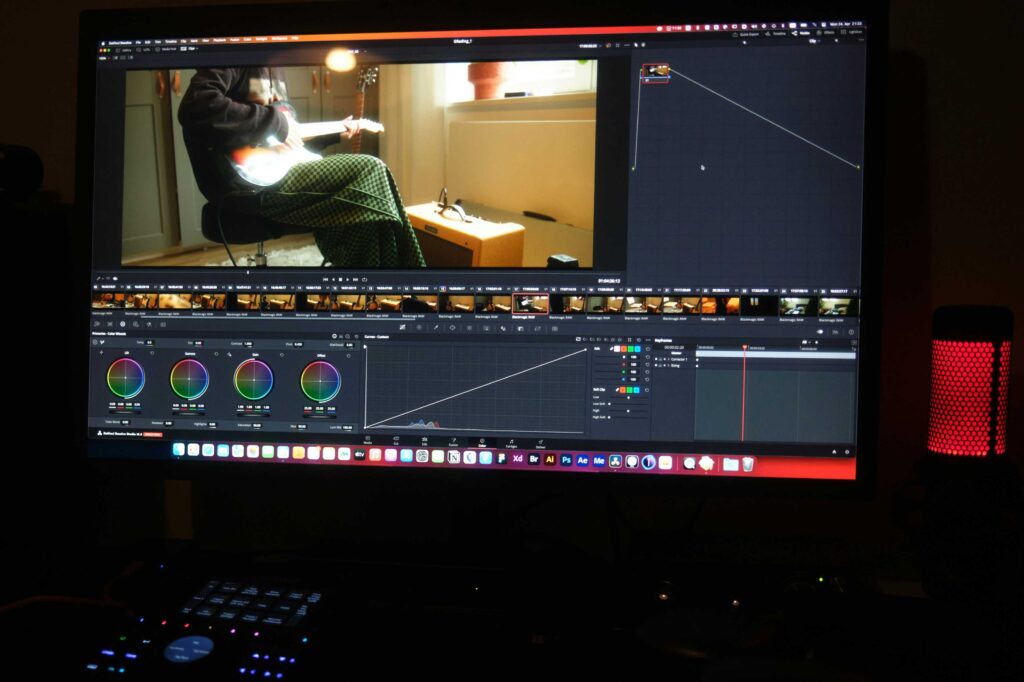
The process of creating a 2D animation videos is quite simple. Using AI tools you can create a professional video in just minutes.
1. Select the Topics
First of all select the topic on which you want to make a video.
Example topics:
- AI tools tutorial
- technology explainers
- motivational animation story
- educational content
2. Prepare a script
Writing a script is essential before creating an animation video. The script should be clear and engaging. If you prefer you can also generate the script using ChatGPT.
Example script:
“Today we will learn how AI tools help beginners create amazing 2D animation videos easily.”
3. Choose the AI 2D Animation Tools
Some Popular 2D Animation AI Tools
1. Animaker
- Drag & drop animation
- Ready characters
- Auto lip sync
2. Vyond
- Professional animated videos
- Best for business and YouTube
3. Renderforest
- AI Video Generator
- Templates are available ready-made
4. Create character
Now you need to generate animation characters. You can do this using AI image generator tools such as:
- Leonardo AI
- Midjourney
- Ideogram
Character Prompt Example:
“Create a colorful 2D cartoon character of a friendly tech teacher holding a laptop, animation style.”
5. Create background scenes
Background scenes also have to be generated for animation videos.
Background Scene Prompt Example:
“2D cartoon style modern classroom with computers and technology elements, colorful animation background.”
6. Add Animation
Now import the characters and scenes into the animation software and add movement. AI tools have a drag and drop system making it easy to add animation.
Example animations:
- Walking
- Explaining
- Pointing
7. Add AI Voice Over
Add voiceover to make 2D animation videos engaging.
There are 2 options:
1. Your Voice
Record with microphone and add voice to video.
2. AI Voice
Type in the text and it will automatically generate the sound. This process is best for those who don’t want to use their own voice in the video.
Best AI voice tools:
- ElevenLabs
- Murf AI
- PlayHT
Example voice style: “Friendly male voice explaining technology in a simple and engaging tone.”
8. Add Music and Effects.
Add background music, sound effects and transition effects to make the video interesting.
Example:
- Typing sound
- Click sound
- Intro music
9. Export Video
The video once everything is complete.
Export settings:
- Format: MP4
- Resolution: 1080p
- Length: 1–3 minutes
Now you can upload videos to YouTube, Instagram or website there will be no problem.
How to Grow 2D Animation Channels
If you want to start an animation channel on YouTube or social media follow these strategies.
Consistent Uploads
Upload at least 2 videos a week.
Short Animation Videos
Short videos go viral faster so make as short videos as possible. This will help your channel grow faster.
Example Platforms:
- YouTube Shorts
- Instagram Reels
- Facebook Reels
- Tik Tok
Use storytelling
Story based animation videos attract the audience more.
Example:
- AI robot story
- future technology animation
Frequently Asked Questions (FAQ)
1. Is it possible to create 2D animation videos with the help of AI tools?
Yes, it’s absolutely possible to create animated videos using AI tools. Today, many AI-powered tools allow you to create 2D or simple animated videos in just minutes, even without any animation skills. All you need to do is enter a script or idea, and the AI automatically creates characters, scenes, voiceovers, and animation. This way, even beginners can easily create animated videos for YouTube, social media, or educational content.
2. What is the best AI 2D animation tool for beginners?
Animaker and Steve AI are the easiest AI animation tools for beginners. They offer templates and AI features that make it easy and quick to create animated videos, even without any special skills.
3. Can animation videos be monetized on YouTube?
Yes, AI animation videos can be monetized on YouTube but the content must be original and useful. If you add your own script, voiceover, editing, or story, and don’t just post auto-generated or copied content from AI, YouTube monetization isn’t a problem.
4. Are AI animation tools free?
Yes, many AI animation tools are free but most offer limited features. Free versions often have watermarks, limited downloads, or fewer templates, and more features require a paid plan. For example, tools like Animaker have a free plan that allows you to create basic animations.
Conclusion
AI technology has made 2D animation video creation very easy and fast. Today, many powerful AI tools are available that allow even beginners to create professional-looking animated videos without any animation skills. These tools provide a great opportunity for content creators, educators, and marketers.
If you want to create YouTube, educational content, or marketing videos, using AI 2D animation tools can help you create engaging videos in just minutes. AI animation technology is set to become more advanced in the future, so exploring AI tools and starting animated content creation now can be a smart decision.
Read this also:
Best AI Tools for Video Editing
Free AI Tools for YouTube Beginners in 2026
Join Our WhatsApp Channel
Get the latest AI tools, tech guides, and blogging tips directly on WhatsApp. Join our channel for regular updates.